Combine all PDF files
The Combine All feature lets you combine Word, Excel, PowerPoint, web pages and documents that have been opened. Before merging to create a new PDF, you can preview and arrange files/pages, delete unneeded pages and move pages around.
-
In Right PDF (macOS), select Advanced > Combine All. If there are digital signatures in the open files, you'll see a message stating digital signatures will not be retained in the result document. Click OK.
-
In the Combine Files dialog box, all open files are listed. You can use Add to add more files to be merged and Delete to remove files. Check Add file names as Bookmarks if you would like to have bookmarks automatically added to the result file and named after each source file.
-
Do any of the following as needed:
-
Rearrange Pages. In the Thumbnail view, drag the file or page into position. While you are dragging, a red bar moves between pages or documents to indicate the current position.
-
Expand pages or Collapse Document. In the Thumbnail view, move the cursor and hover over the page or file, and click the Expand icon . Once expanded, you can easily move individual pages among the other pages and documents. To collapse pages, move the cursor and hover over the first page, and click the Collapse icon
 .
-
Preview pages. In the Thumbnail view, select a page and click the Preview button.
-
Delete pages. In the Thumbnail view, select a page and click the Delete button.
-
Sort files. In the List view, click the column name you want to sort by, and click again to sort in reverse order. The order in the list of files reflects the order of files in the merged PDF. Sorting rearranges the pages of the combined PDF.
-
Move files up or down file list. In the List view, select one or multiple files you want to move, and then click the Move Up or Move Down button.
-
Click  to create a Binder file and open it as a new tab(A) in the window.
-
In the Bookmarks panel of the result file, all source files are added as bookmarks(B), including those nested under other binder files. For example, given Binder 2* contains multiple files (including Binder 1*), all files including those under Binder 1* will be listed as bookmarks as shown below.
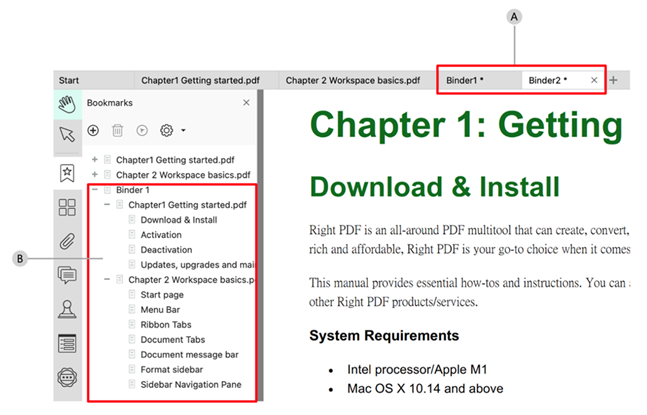
A. Created binder files appear as tabs in the Right PDF window where the Combine All feature was used.
B. Files within a binder file are also listed as bookmarks in the Bookmarks panel.
Note: digital signatures in the files to be combined will not retain in the resulting Binder file. This doesn't affect those in the original files.


